How to Export iMessages from iPhone to PC/Mac?
Method 1: Export iPhone Messages to Mac by Text Message Forwarding
The first method we will discuss is how to forward text messages to transfer iMessages from iPhone to MacBook. To begin with, your iPhone must have iOS 8 or later versions. Also, your Mac must have OS X Yosemite or later versions already running. Sign in both of them to iCloud using your regular Apple ID. After this, follow the steps below to set up text message forwarding.
Here is how to transfer your iPhone text messages to your MacBook Pro/Air:
Step 1. Go to your iPhone Setting and click on Messages.
Step 2. Click on Send & Receive.
Step 3. Check to see if the Apple ID you indicated is the same Apple ID being used for iMessage.
Step 4. In the box, check phone number and your email under "YOU CAN BE REACHED BY IMESSAGE AT".
Step 5. Go to your Mac and open the Messages app.
Step 6. Click on Messages on the menu bar, and click on Preferences.
Step 7. Locate the Accounts tab and click, then choose your iMessage account.
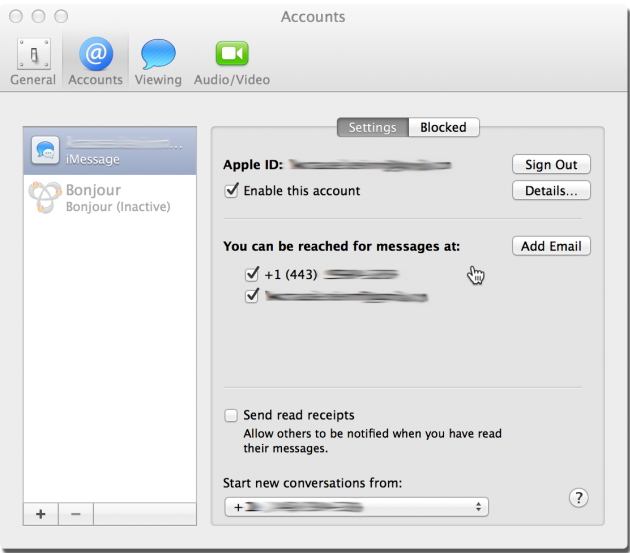
Step 8. Go to "You can be reached for messages at" and check both phone number and email addresses.Sponsor ads:
send anonymous text message from computer for free
Must Read:If you lost data after you updated to a new iPhone, you can always use Gihosoft iPhone Data Recovery to get the data back from the old iPhone or backup.
Gihosoft Free iPhone Data Recovery:iphonerecovery.com
If you use android phones, please choose Gihosoft Android Data Recovery
Step 9. Go back to your iPhone and click on the Settings app, then Messages. Click on Text Message Forwarding (make sure your computer switch is on). Finally, enter the verification code sent to your computer.
That is it. From that moment, all your iMessages and other text messages will appear on your computer as well as your iPhone.
However, the solution only works for those who have Mac computer. If you are using Window computer, this method will not work for you. Therefore, you will need a method that can help you to export iMessage conversation from iPhone to both Window and Mac computer. And that brings us to the second method – exporting with iMyFone D-Port.

